
Password Management
Reset Your Password
Forgot your password? No worries! Follow our simple steps to reset it securely and get back to protected browsing in minutes.
Password Reset Process
Resetting your password is quick and secure. Just follow these four steps to regain access to your account.
Request Reset
Enter your email to receive a verification code
Verify Email
Enter the 4-digit code sent to your inbox
Create Password
Set a new strong password for your account
Confirmation
Success! Return to login with your new password
Step 1: Request Password Reset
Start by telling us which account needs a password reset.
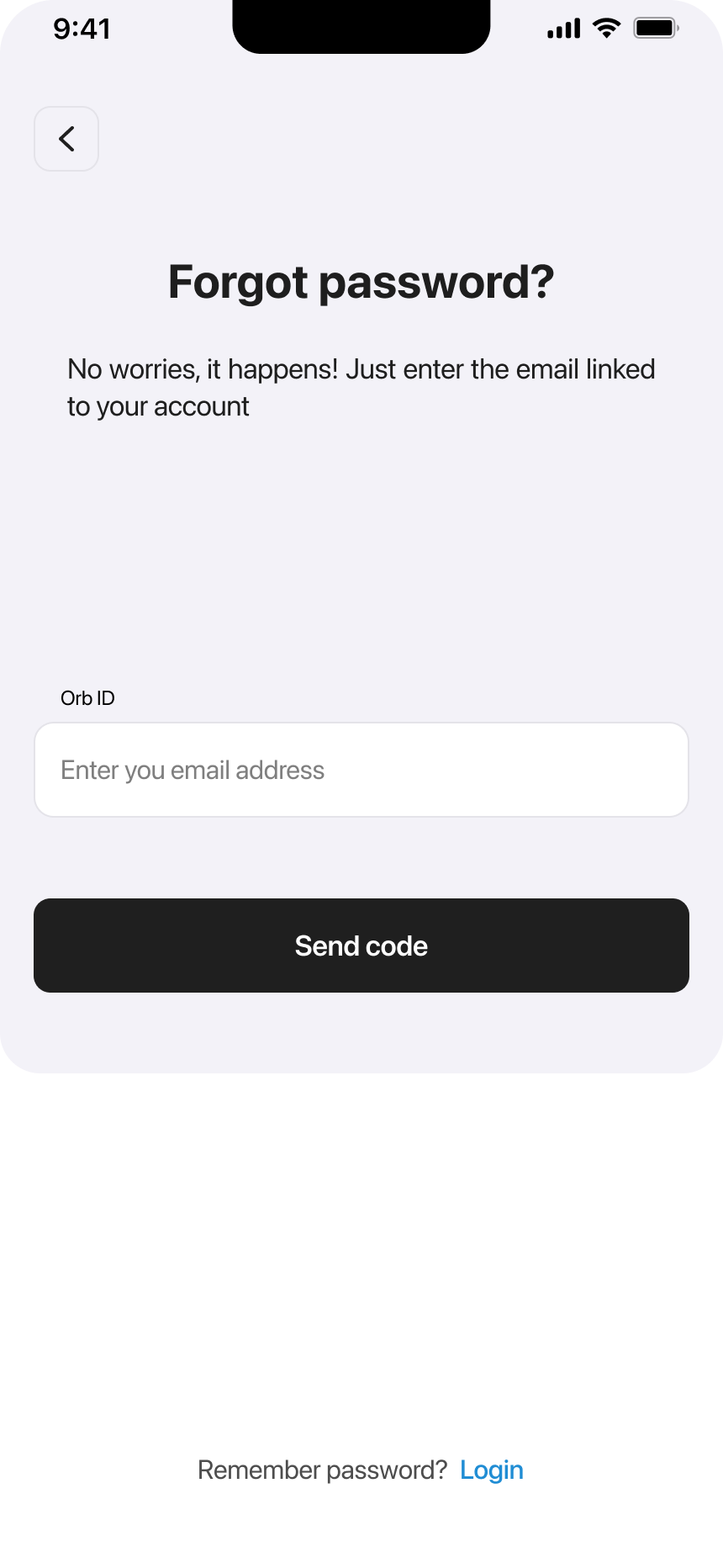
Enter Your Email
Type the email address associated with your OrbVPN account into the Email field.
Send Verification Code
Tap 'Send code' to receive a 4-digit verification code at your email address.
Remember Your Password?
If you suddenly recall your password, tap "Login" at the bottom to return to the login screen.
Step 2: Verify Your Email
Enter the verification code we sent to confirm your identity.
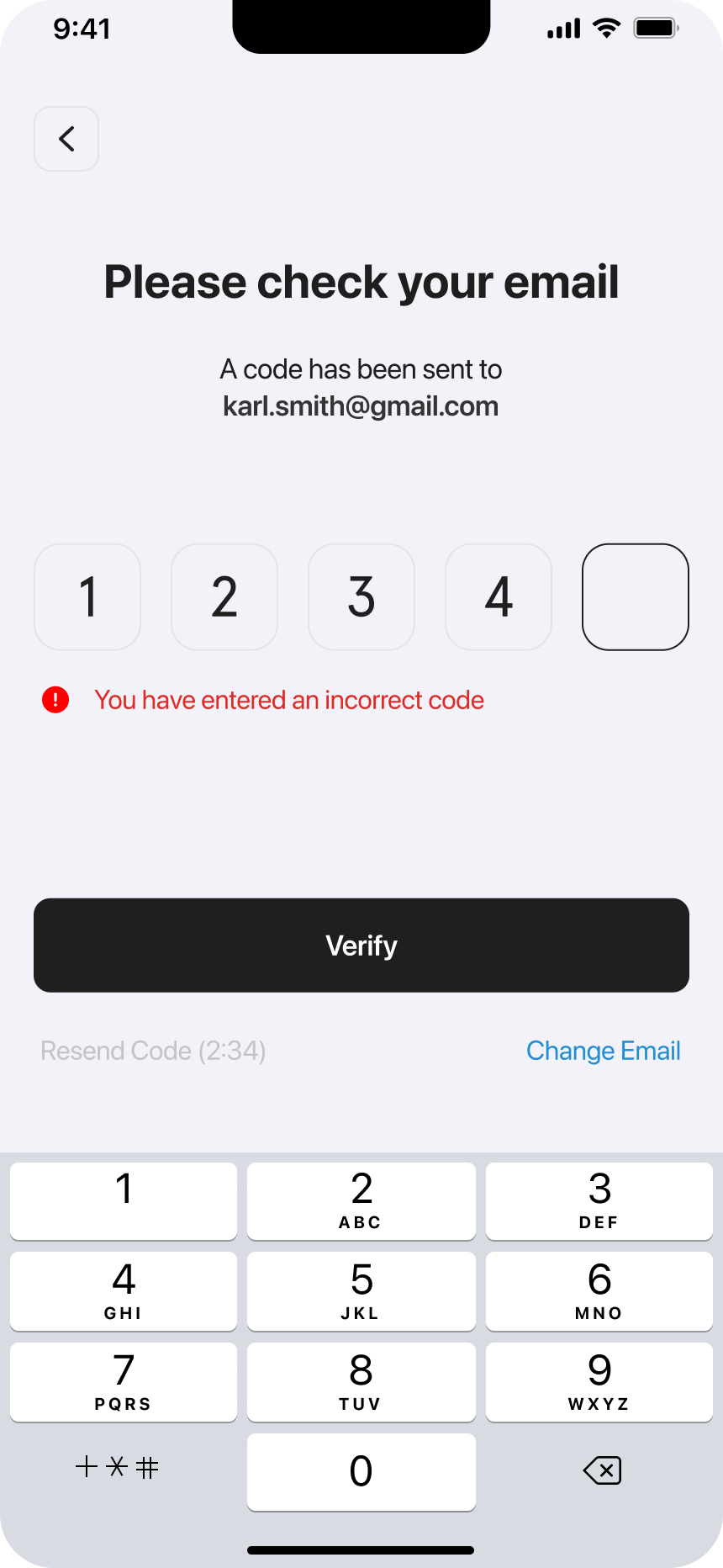
Check Your Email
Open your email inbox and find the message from OrbVPN with your verification code.
Enter the Code
Type the 4-digit code into the boxes on screen. Each box holds one digit.
Code Not Working?
Verification codes expire after 10 minutes. If your code doesn't work, go back and request a new one. Also check your spam folder if you don't see the email.
Step 3: Create New Password
Time to set a new, secure password for your account.
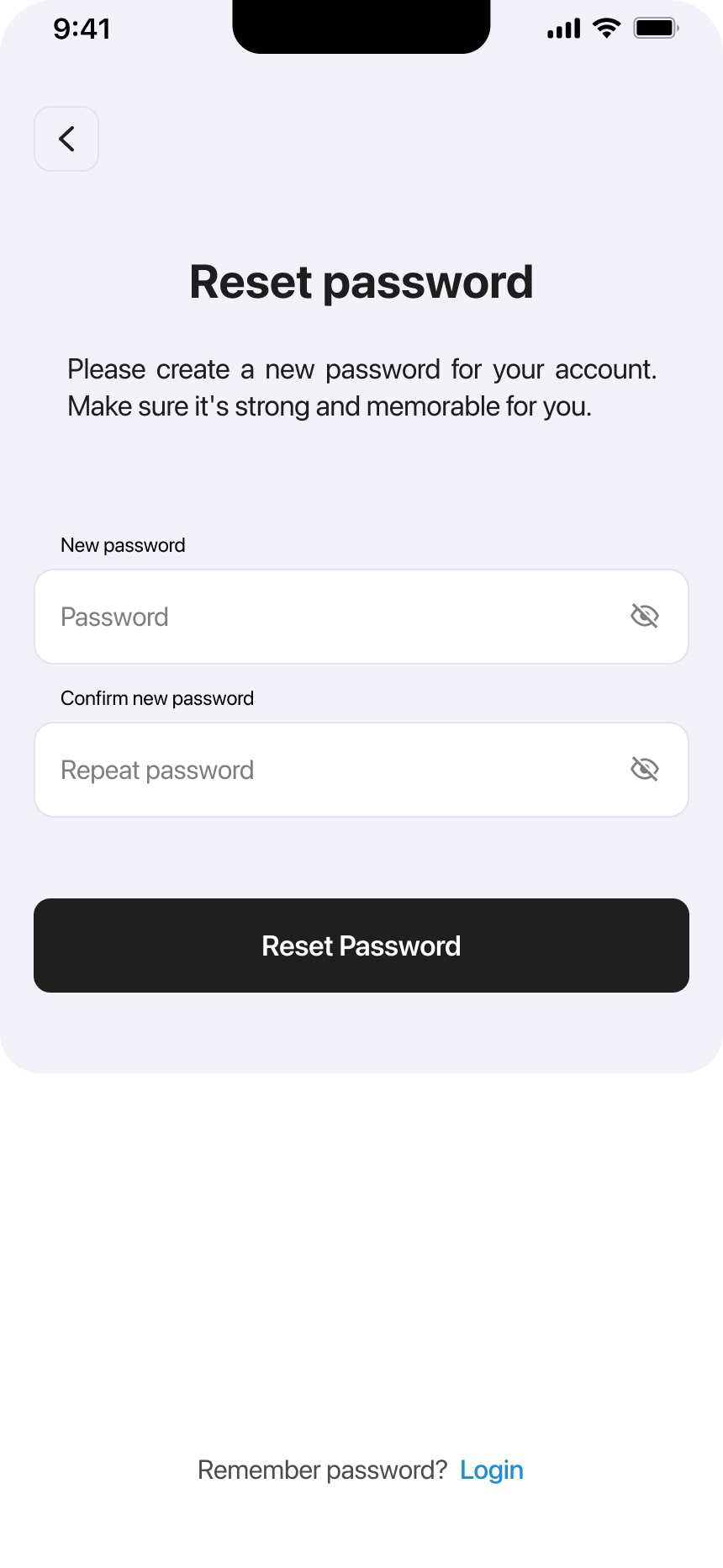
Enter New Password
Type your new password. Use at least 8 characters with a mix of letters, numbers, and symbols.
Confirm Password
Re-enter the same password to confirm. Both fields must match exactly.
Reset Password
Tap 'Reset Password' to save your new password and secure your account.
Password Tips
Create a strong password by combining uppercase letters, lowercase letters, numbers, and special characters. Avoid using personal information or common words.
Step 4: Confirmation
Your password has been successfully changed!

Review Confirmation
You'll see a success message confirming your password has been changed.
Return to Login
Tap 'Back to login' to sign in with your new password and start using OrbVPN.
All Set!
You can now log in with your new password. Consider saving it in a password manager for easy access.
Troubleshooting
No Email Received
Check spam/junk folder. Verify the email address is correct. Wait a few minutes and try again.
Invalid Code
Codes expire after 10 minutes. Request a new code if yours has expired or was entered incorrectly.
Passwords Don't Match
Ensure both password fields are identical. Check for extra spaces or typos.
Password Too Weak
Use at least 8 characters with a mix of letters, numbers, and symbols for security.
Back to Secure Browsing
With your new password set, you're ready to enjoy secure, private browsing again. Don't forget to enable biometric login for faster access!