
Connection Management
Connect & Protect
Securely connect to servers worldwide with one tap. Choose from multiple VPN protocols optimized for speed, security, and reliability.
VPN Protocols
Choose the protocol that best fits your needs. Each offers unique advantages for different use cases.
Cisco
Enterprise-grade security with robust encryption, ideal for business use.
Reality
High performance and low latency for real-time applications and streaming.
VLESS
Lightweight and flexible for faster, more efficient connections.
SSTP
Secure Socket Tunneling for reliable point-to-point connections.
Connection States
OrbVPN displays different screens based on your connection status. Here's what each state means and how to use it.
Idle State
When no VPN connection is active, you'll see the idle screen ready for you to connect.
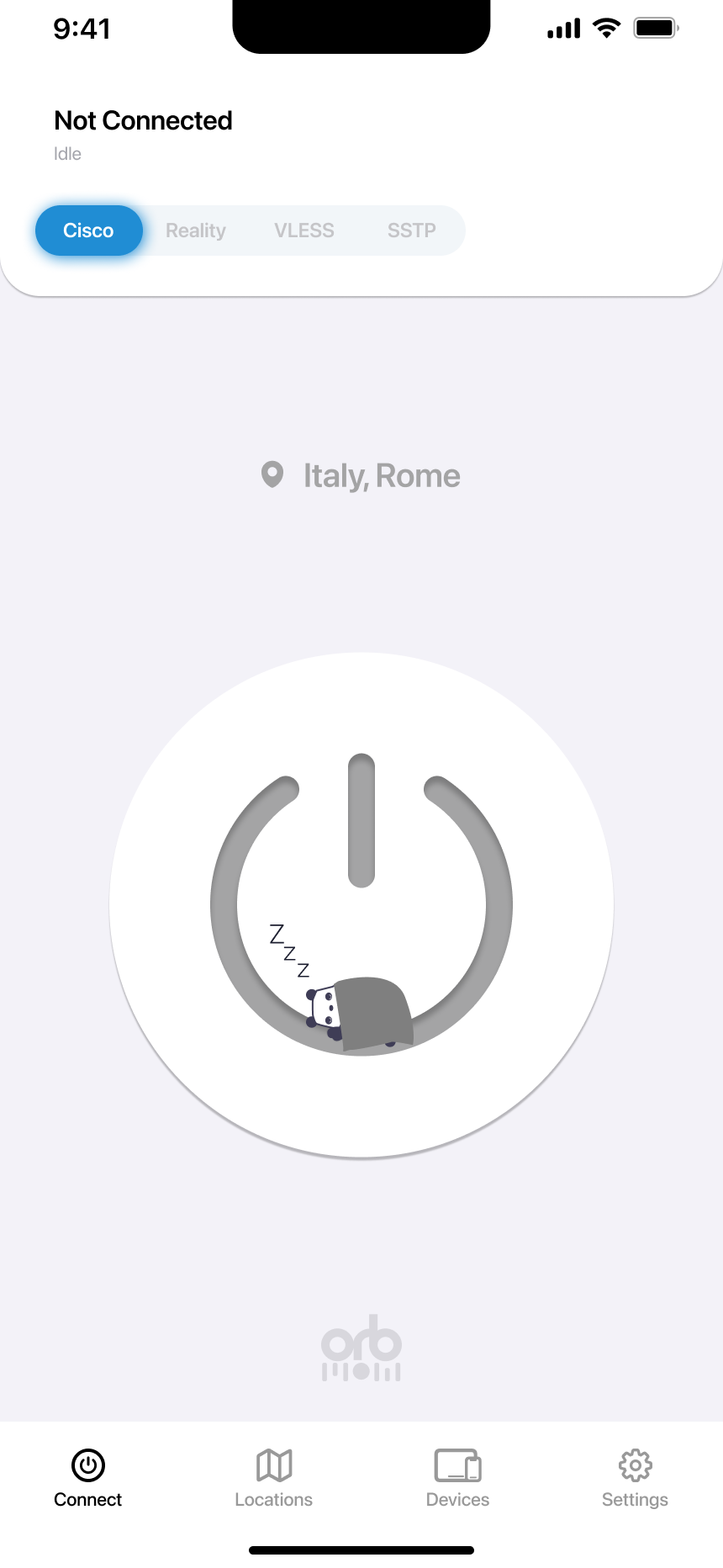
Select Your Protocol
Tap on Cisco, Reality, VLESS, or SSTP tabs to choose your preferred VPN protocol based on your needs.
Check Your Location
View and change your selected server location. The current location is displayed on the screen.
Tap to Connect
Press the large power button to initiate your VPN connection with the selected protocol and location.
Connecting State
This screen appears while OrbVPN is establishing a secure connection to the server.
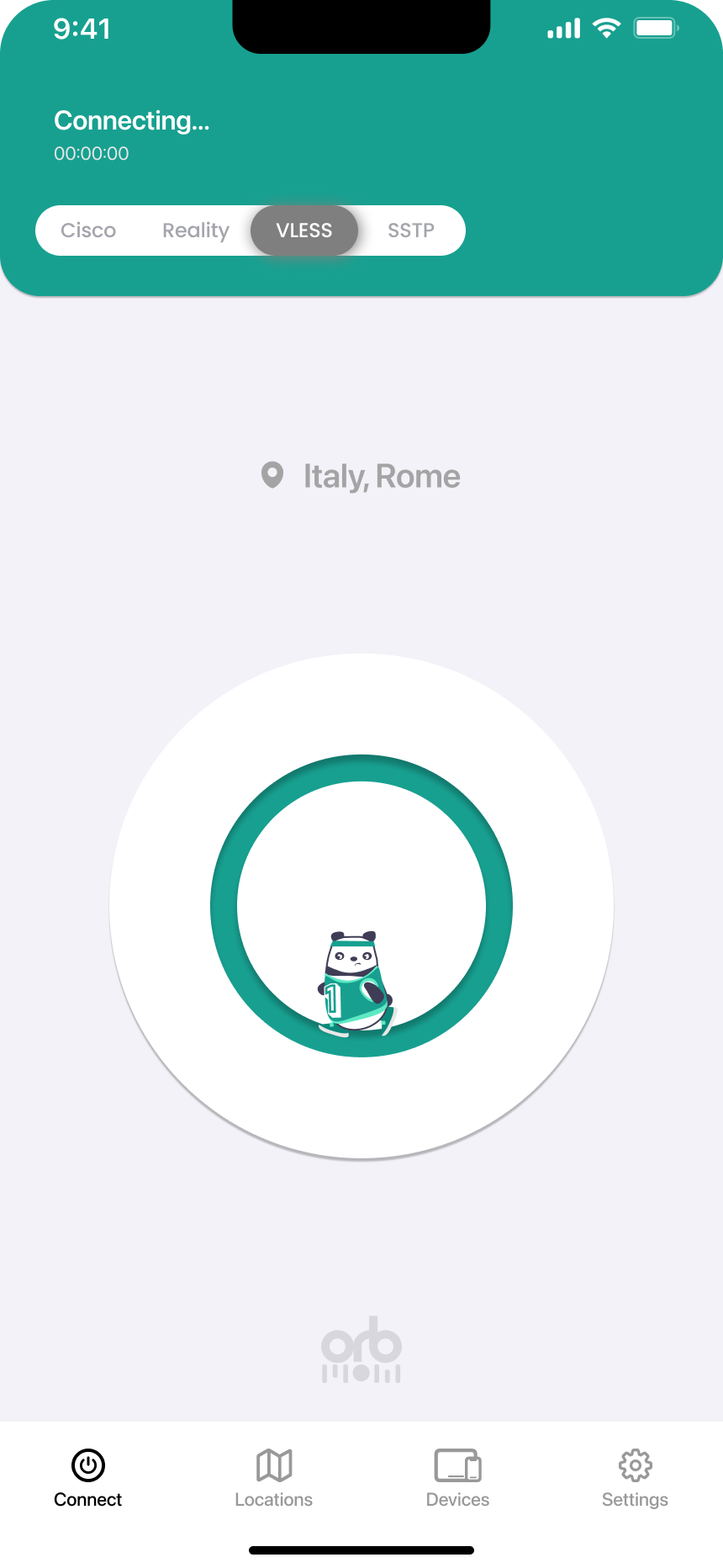
Connection in Progress
The animated power icon indicates the connection is being established. This usually takes just a few seconds depending on your network and server distance.
Wait for Connection
The app is establishing a secure tunnel. Watch the animated icon as the connection is being set up.
Cancel if Needed
Tap the power button again if you want to cancel the connection attempt.
Connected State
Success! You're now protected. This screen shows your active VPN connection details.
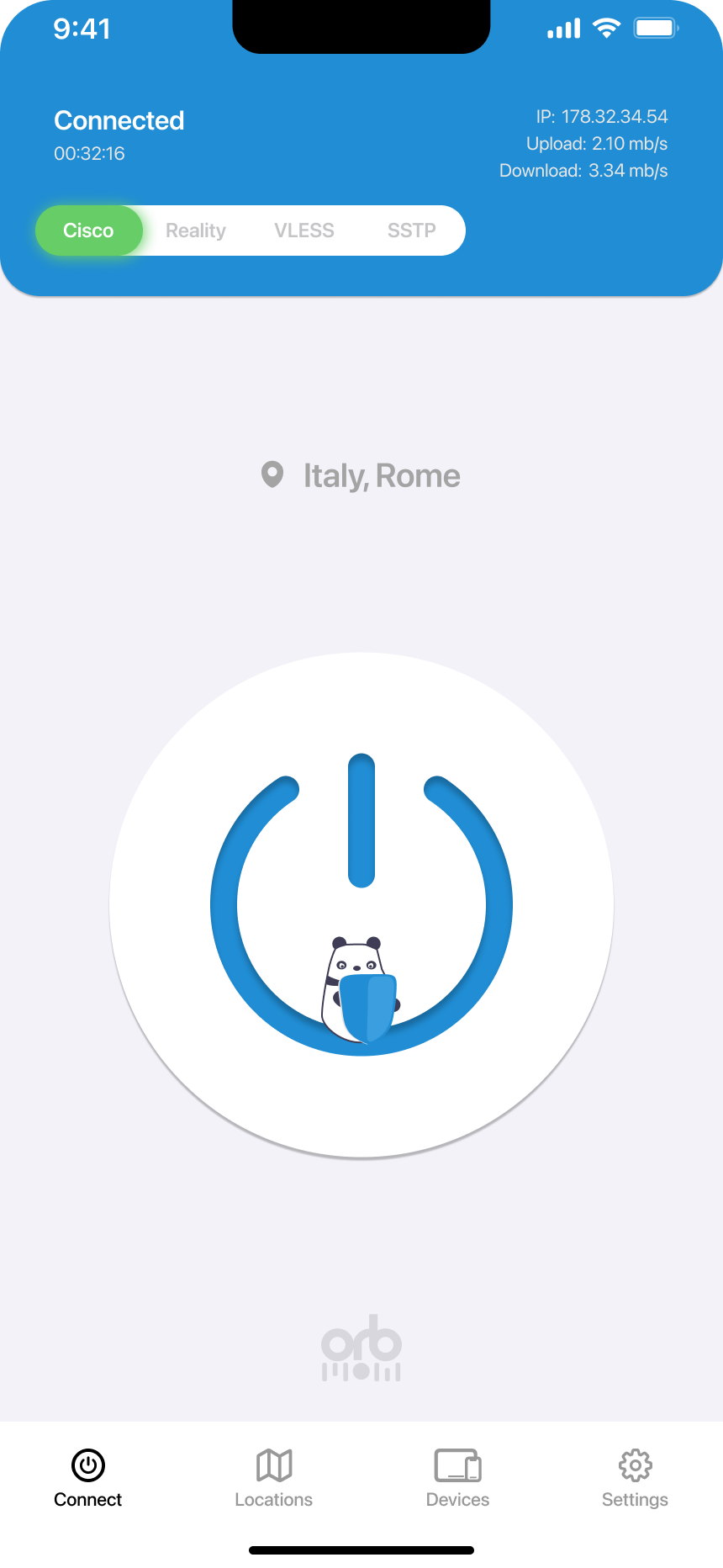
New IP Address
Your real IP is hidden and replaced with the server's IP address for complete anonymity.
Speed Monitoring
Track your upload and download speeds in real-time to ensure optimal performance.
Verify Connection
Check your new IP address and connection duration displayed on screen to confirm you're protected.
Monitor Performance
View real-time upload and download speeds to ensure you're getting optimal performance.
Disconnect When Done
Tap the power button to safely disconnect from the VPN when you no longer need protection.
Stay Connected
For maximum privacy, keep OrbVPN connected whenever you're browsing, especially on public Wi-Fi networks.
Error State
If something goes wrong, you'll see the error screen with options to troubleshoot.
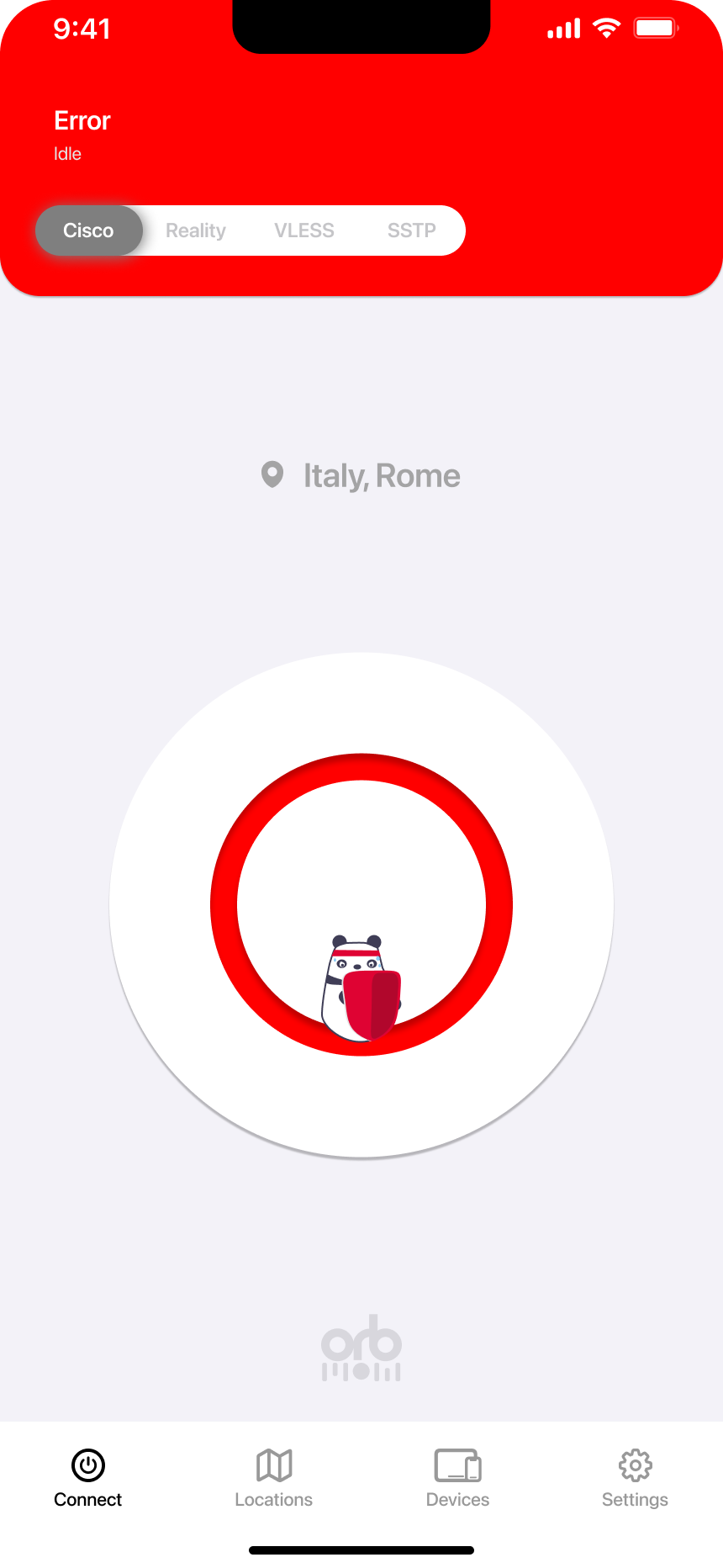
Connection Failed
Don't worry - connection errors are usually temporary. Try the troubleshooting steps below to resolve the issue.
Check the Error
Review the status message to understand what went wrong with the connection attempt.
Try a Different Protocol
Switch to another protocol tab (Cisco, Reality, VLESS, SSTP) - some work better in certain networks.
Retry Connection
Tap the power button to attempt connecting again. Sometimes it just takes a second try.
Troubleshooting
Having issues? Here are common problems and their solutions:
Connection Issues
Check your internet connection first. Try switching protocols or server locations if problems persist.
Slow Speeds
Choose a server closer to your location. Try the Reality or VLESS protocol for better performance.
App Crashes
Restart the app or your device. Make sure you have the latest version of OrbVPN installed.
Authentication Failed
Verify your subscription is active. Log out and log back in to refresh your credentials.
Experience True Privacy
Connect to 100+ servers worldwide and enjoy unrestricted, secure internet access. Your privacy is our priority.