Connection Management
Connect & Protect
Manage your VPN connection with a single tap. Monitor real-time statistics, understand connection states, and stay informed about your protection status at all times.
Connection Overview
The OrbVPN connection screen is your primary interface for establishing and managing VPN tunnels. It displays your current protection status, selected protocol, server location, and real-time performance metrics. Understanding each connection state helps you stay informed about your security at all times.
Connection States
OrbVPN cycles through four distinct states during the connection lifecycle. Each state provides visual feedback so you always know exactly what is happening with your VPN.
Idle State
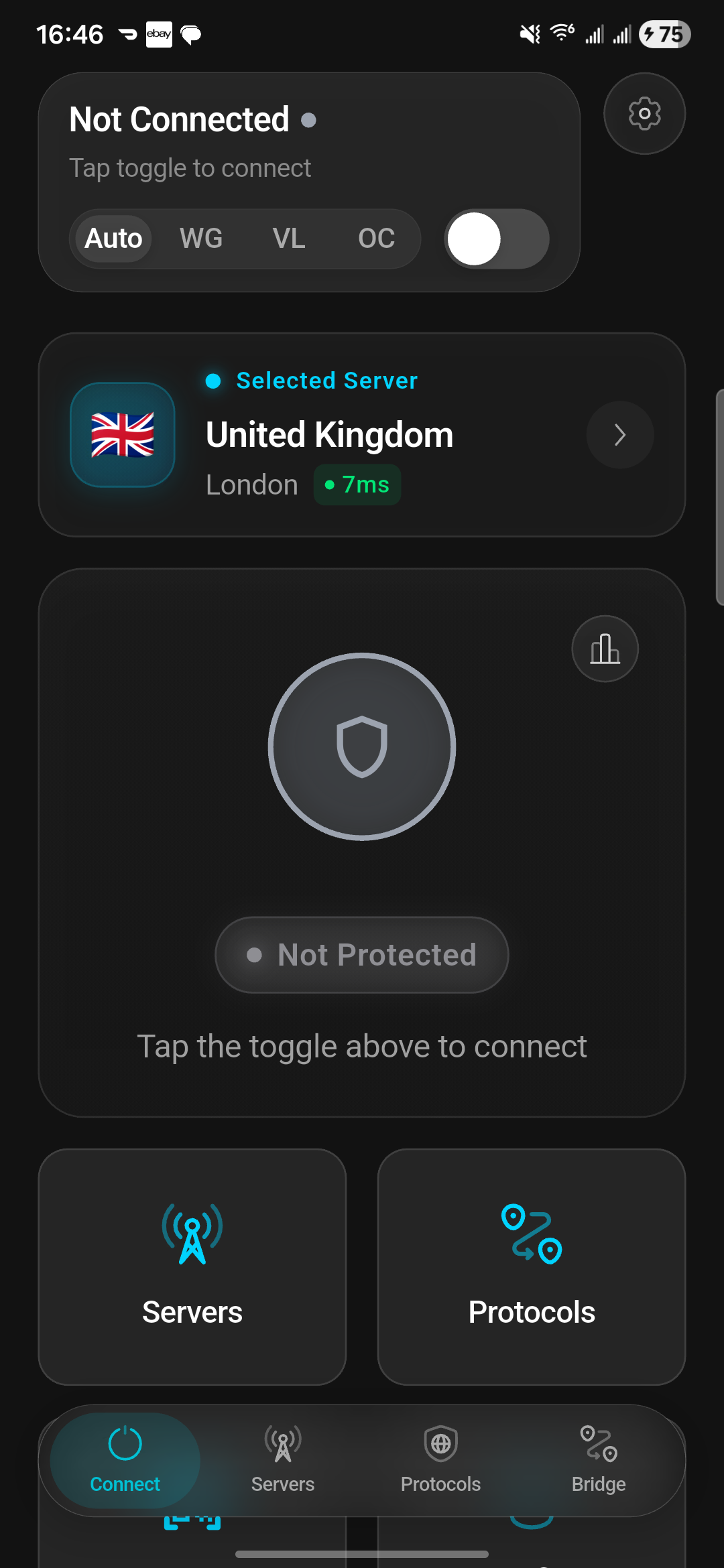
When no VPN connection is active, the app displays the idle screen. This is where you configure your connection before tapping to connect.
Server Location
Displays your currently selected server and country. Tap to change your location before connecting.
Protocol Indicator
Shows your active protocol (Auto, WireGuard, VLESS, OrbConnect, or SSH Tunnel). Switch protocols before connecting for different speed and stealth profiles.
Select Your Protocol
Choose Auto (Smart Connect), WireGuard, VLESS, OrbConnect, or SSH Tunnel. Each protocol offers different strengths for speed, security, and censorship resistance — or let Auto decide for you.
Choose Your Server
Review and change your selected server location. The current server name and country flag are displayed on the main screen.
Tap to Connect
Press the large power button in the center of the screen to initiate your VPN connection with the selected configuration.
Connecting State
This transitional state appears while OrbVPN establishes a secure tunnel to the selected server. The connection process involves authentication, key exchange, and tunnel setup.
Connection in Progress
The animated power icon indicates the connection is being established. This typically takes one to three seconds depending on your network conditions, server distance, and the selected protocol.
Authentication
OrbVPN verifies your credentials with the server and negotiates encryption parameters for the session.
Tunnel Establishment
A secure encrypted tunnel is created between your device and the VPN server. All traffic will be routed through this tunnel.
Cancel if Needed
Tap the power button again during this phase to cancel the connection attempt and return to the idle state.
Slow Connections?
If connecting takes more than a few seconds, try switching to a closer server or a different protocol. WireGuard typically establishes connections the fastest.
Connected State
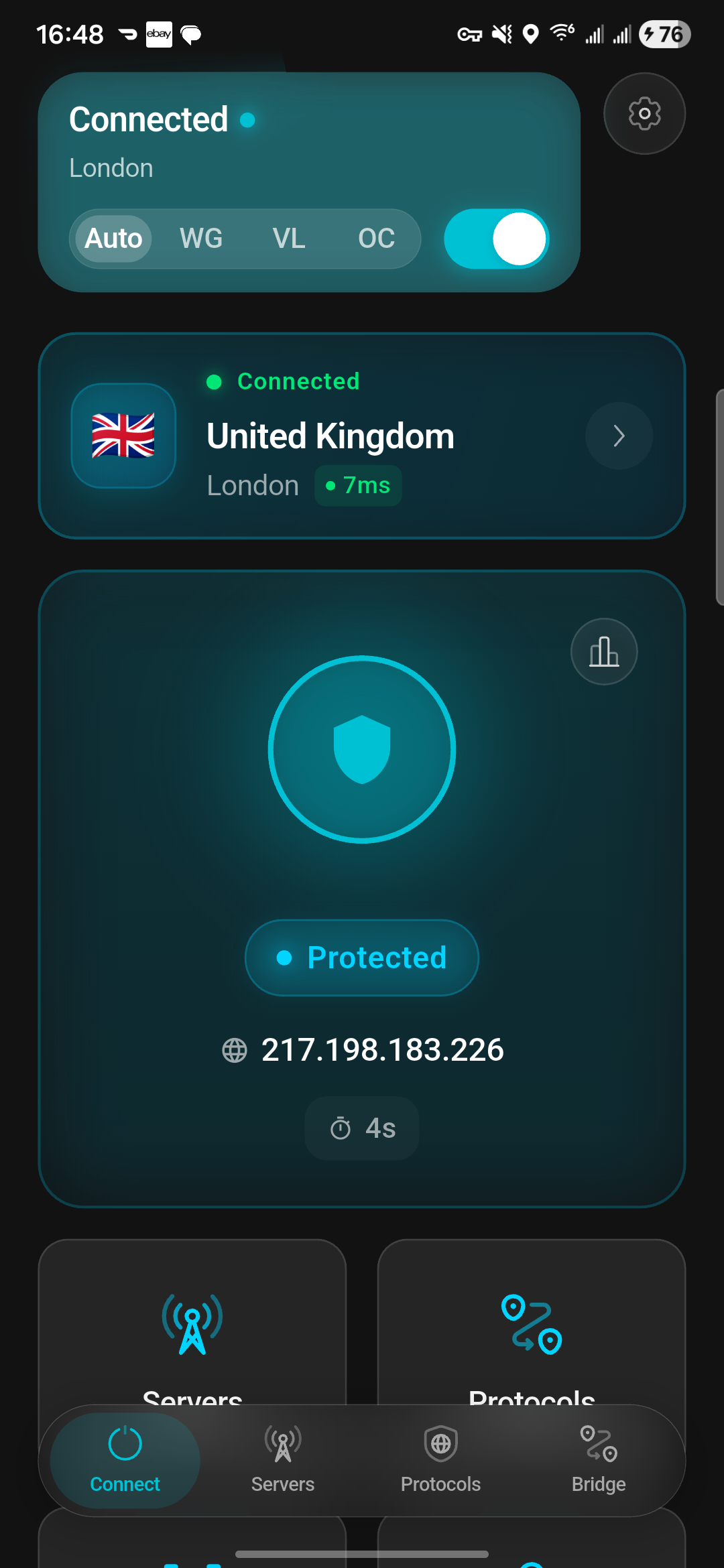
You are now protected. All your internet traffic is encrypted and routed through the VPN server. The connected screen displays real-time information about your active session.
New IP Address
Your real IP is hidden. The screen shows your new public IP address assigned by the VPN server, confirming your identity is masked.
Speed Monitoring
Real-time upload and download speed indicators let you verify you are getting optimal performance through the VPN tunnel.
Connection Duration
A live timer shows how long your current VPN session has been active, helping you track your usage.
Data Transferred
Monitor the total amount of data sent and received during your session to keep track of bandwidth usage.
Verify Your Protection
Check the displayed IP address to confirm it differs from your real IP. The green status indicator confirms you are protected.
Monitor Performance
Watch the real-time upload and download speed indicators. If speeds are lower than expected, consider switching servers.
Disconnect When Ready
Tap the power button to safely terminate the VPN connection. Your traffic will return to your normal ISP route.
Stay Protected
For maximum privacy, keep OrbVPN connected at all times, especially when using public Wi-Fi networks, airports, hotels, and coffee shops.
Error State
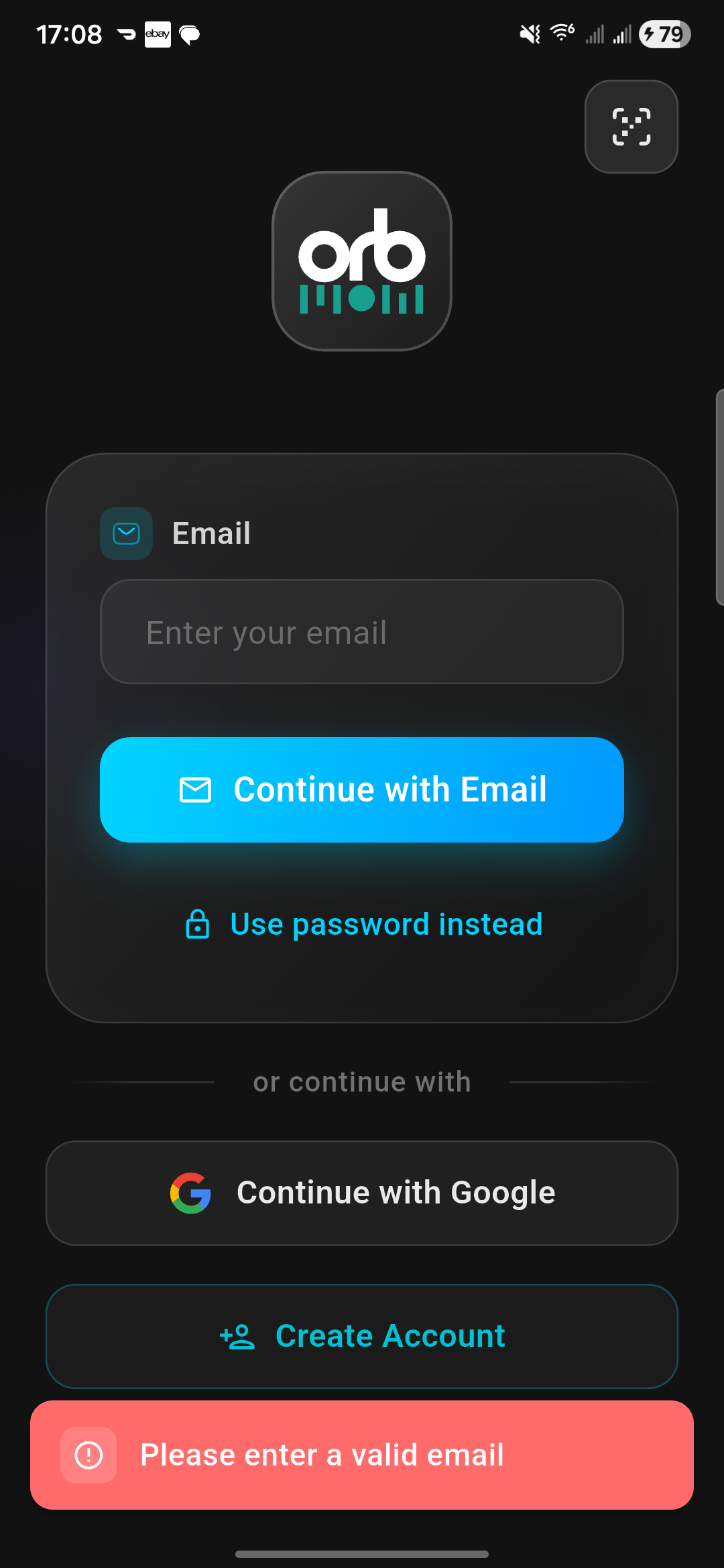
If the connection attempt fails, OrbVPN displays an error screen with diagnostic information and recovery options. Connection errors are usually temporary and can be resolved with a few simple steps.
Connection Failed
Do not panic. Most connection errors are caused by temporary network issues, server maintenance, or restrictive firewalls. Follow the troubleshooting steps below to restore your connection.
Read the Error Message
Review the status message displayed on screen. It provides specific information about why the connection failed.
Check Your Internet
Ensure your device has an active internet connection. Try opening a website in your browser without the VPN to confirm.
Switch Protocol
Some networks block specific VPN protocols. Try switching to VLESS, OrbConnect, or SSH Tunnel — all designed to bypass protocol-based restrictions — or select Auto to let Smart Connect find a path automatically.
Try a Different Server
The selected server may be under maintenance or experiencing high load. Choose a different server location and retry.
Retry the Connection
Tap the power button to attempt connecting again. Many errors resolve on a second attempt.
VPN Credits (Free Tier)
OrbVPN offers a free tier powered by a credit-based system. Free users receive a balance of VPN credits that are consumed during active VPN sessions. The credit system ensures fair access while providing a path to unlimited usage.
Credit Balance Display
Your current credit balance is prominently displayed on the home screen. The balance updates in real time as credits are consumed during active sessions.
Credits per Session
Credits are consumed based on session duration and data usage. The connected screen shows the credit consumption rate so you can manage your balance.
Credit Warnings and Notifications
Low Credit Warning
When your credit balance drops below a threshold, a warning sheet appears reminding you to top up. You can dismiss it and continue using remaining credits.
Credits Depleted
When credits reach zero, the VPN session ends and a credits depleted sheet appears on disconnect, explaining your options to earn or purchase more credits.
Earning More Credits
Free users can replenish their credit balance through several methods.
Watch Rewarded Ads
Tap the 'Earn Credits' button on the home screen and watch a short video ad to receive a credit bonus. Available multiple times per day.
Referral Program
Share your referral code with friends. When they sign up and use OrbVPN, both you and your friend earn bonus credits.
Convert ORB Tokens
If you hold ORB tokens, you can convert them to VPN credits directly within the app. Navigate to the Credits section to initiate a conversion.
Auto-Convert Setting
Enable the Auto-Convert setting in Settings > Credits to automatically convert ORB tokens to VPN credits when your balance drops below a configured threshold. This ensures uninterrupted VPN access without manual intervention.
Real-Time Statistics
While connected, OrbVPN continuously monitors and displays key performance metrics so you can verify your connection quality at a glance.
IP Address
Your masked IP address confirms that websites and services see the VPN server's location instead of yours.
Transfer Speeds
Upload and download speeds are measured in real time and displayed in Mbps, letting you spot any performance degradation.
Session Duration
The elapsed time since your connection was established, displayed as hours, minutes, and seconds.
Auto-Reconnect
OrbVPN automatically detects network changes and reconnects your VPN session without manual intervention. Whether you switch from Wi-Fi to cellular data, change Wi-Fi networks, or wake your device from sleep, OrbVPN maintains your protection seamlessly.
Seamless Transitions
When combined with the Kill Switch feature, auto-reconnect ensures there is never a gap in your protection, even during network transitions. No traffic will leak during the brief reconnection window.
Always-On Protection
Connect to OrbVPN and let intelligent connection management keep you protected around the clock. One tap is all it takes.